TROUBLESHOOTING
3D printing problems and how to fix them
The problems beginners really run into, explained in plain language and shown in real slicer screenshots. Find what you see in the table, open the guide, and work through the checks in order. Most problems come down to a handful of settings.
What are you seeing?
12 common cases| What you see | Usual cause | Guide |
|---|---|---|
| The print comes off the bed, slides, or never sticks | Dirty plate, nozzle height, bed temperature, small footprint | 3D Print Not Sticking to the Bed? 7 Fixes for First-Layer Adhesion |
| Thin hairs or cobwebs between parts | Wet filament, hot nozzle, retraction, long travel moves | How to Fix Stringing and Oozing in 3D Prints |
| Corners or edges curl up from the plate | Cooling and shrinking, no brim, draughts | How to Stop Warping and Corner Lift in 3D Printing |
| The underside of a sloped or hanging part is rough or droops | Overhang steeper than the printer can hold, no supports | 3D Printing Overhangs and Supports: When You Need Them |
| Plastic sags between two supports | A long bridge, too little cooling, speed | Bridging in 3D Printing: Why Bridges Sag and How to Fix Them |
| The slicer says the model is over the bed boundary | The model is bigger than the bed, or the units are wrong | Model Too Big for Your 3D Printer Bed? Rotate, Scale or Cut It |
| The slicer reports open edges or errors, or walls are missing | The mesh has holes or is not a closed solid | Open Edges and Broken Meshes: How to Fix 3D Model Errors Before Slicing |
| A thin wall, fin or detail is missing or too thick | Thinner than the line the nozzle can draw | Thin Walls and Tiny Details Not Printing? Know Your Printer’s Minimum |
| The top surface has holes, gaps or looks lumpy | Too few top layers, sparse infill, low cooling | Holes and Gaps in the Top Layers of a 3D Print (Pillowing) and How to Fix Them |
| The print takes far longer than expected | Infill, walls and layer height settings | Why Is My 3D Print Taking So Long? Measured Effect of Infill, Walls and Layer Height |
| Not sure which file to use, or no colours in the slicer | STL, 3MF, SVG and DXF store different things | STL, 3MF, SVG, DXF: Which File Do You Need for 3D Printing? |
| A word in a setting or message you do not know | Jargon | 3D Printing Glossary: The Terms Used in Our Guides |
All problem guides
10 guides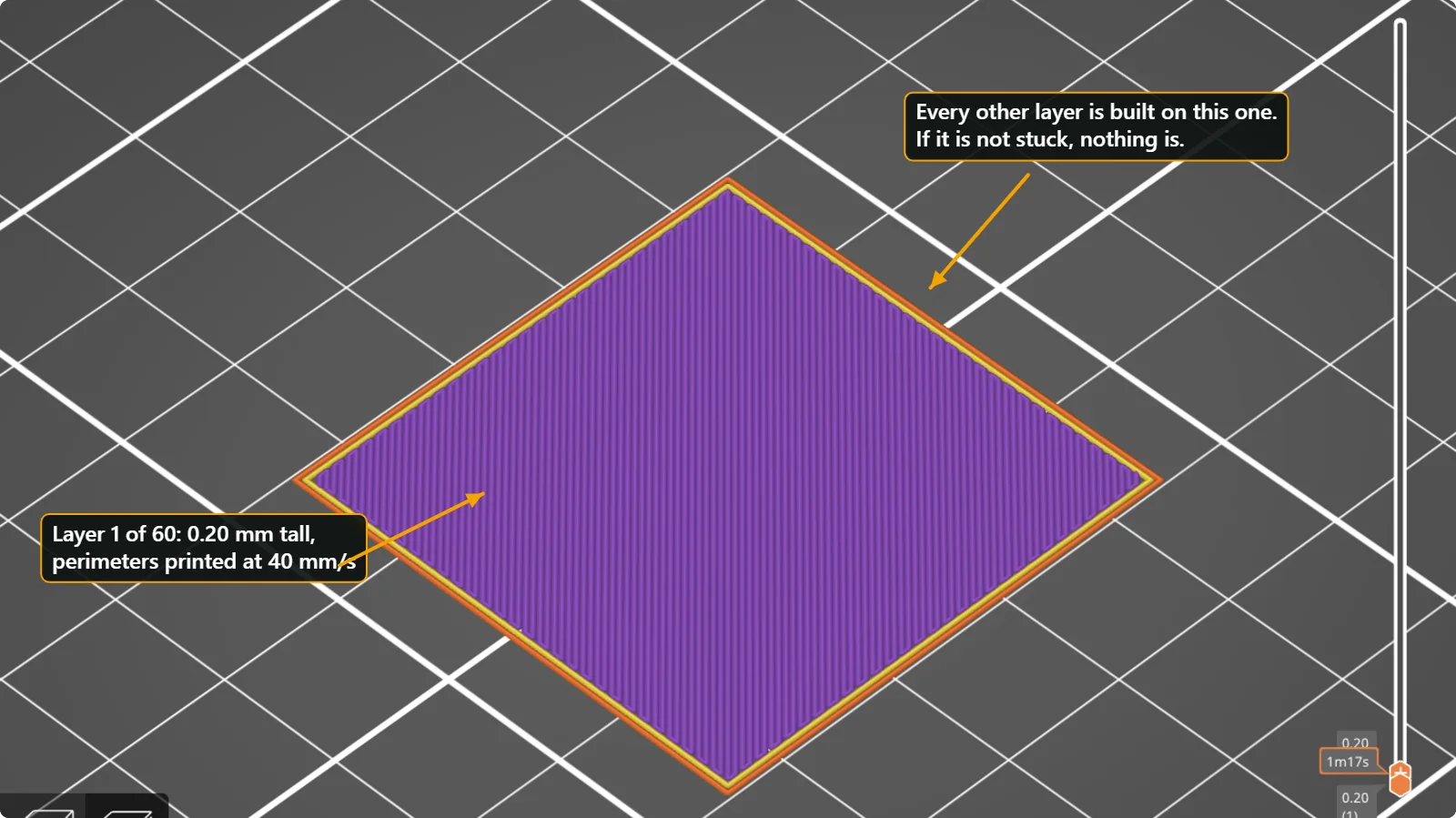 3D Print Not Sticking to the Bed? 7 Fixes for First-Layer AdhesionWhy a 3D print lifts, slides or never sticks to the build plate, and the order in which to check it: clean plate, first-layer height, bed temperature, brim, fan, speed and part orientation, with real slicer screenshots.
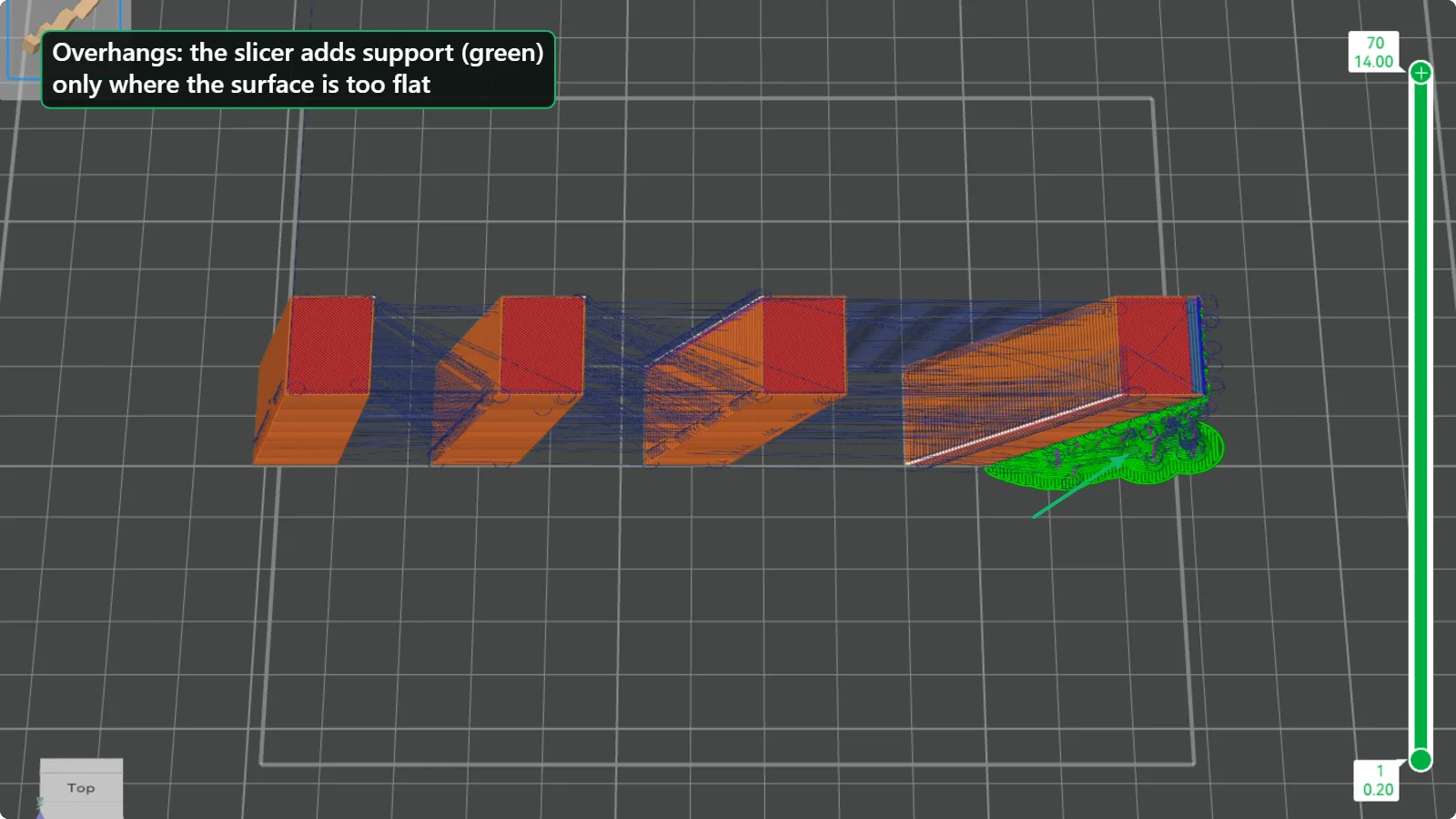 3D Printing Overhangs and Supports: When You Need ThemHow steep an overhang can be before it droops, what the support threshold angle really means, tree versus normal supports, and the settings in PrusaSlicer and Bambu Studio, tested on a four-angle model.
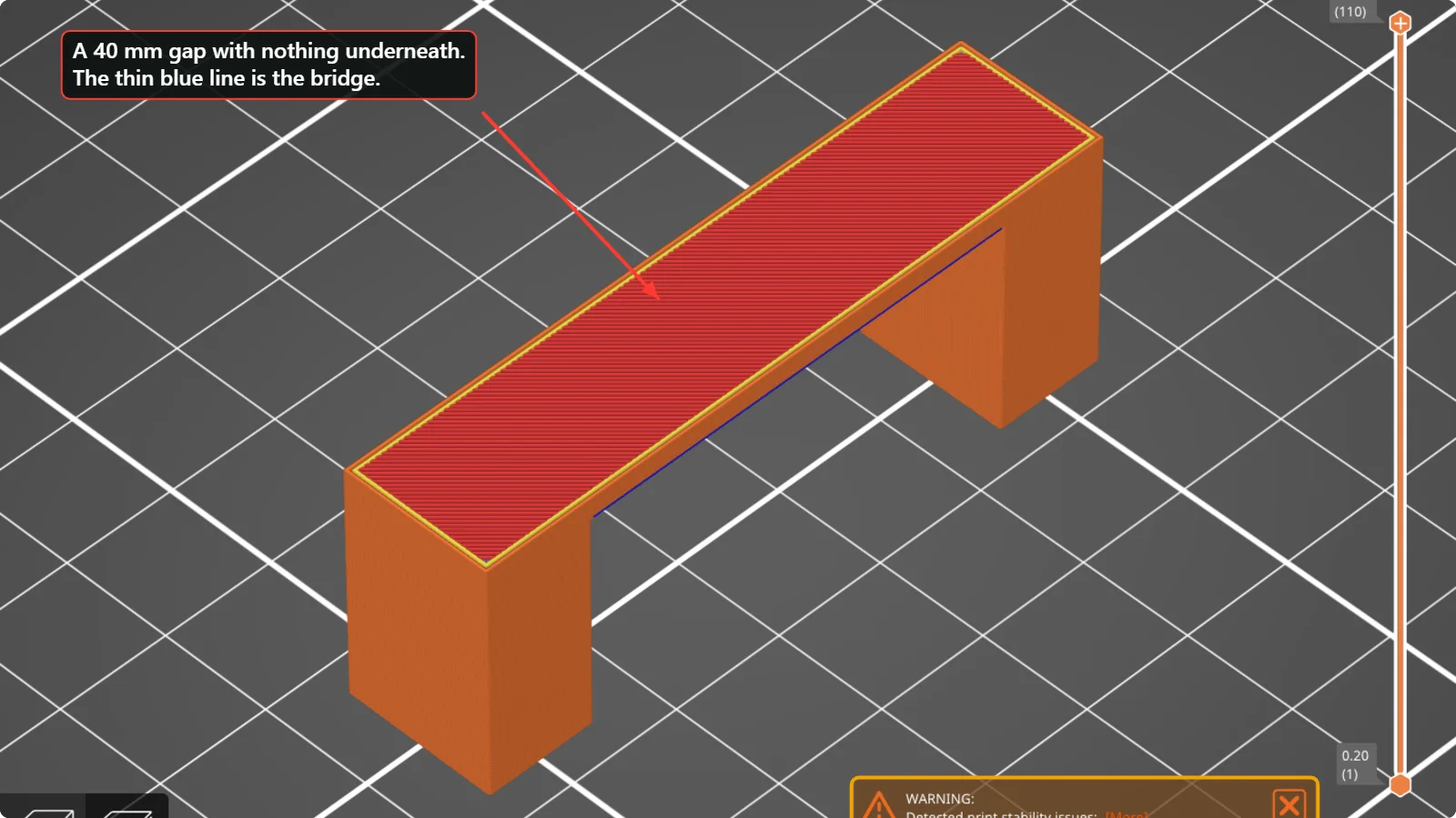 Bridging in 3D Printing: Why Bridges Sag and How to Fix ThemA bridge is plastic printed across a gap with nothing underneath. See how slicers mark bridges, what the warning “long bridging extrusions” means, and which speed, fan and design changes stop sagging.
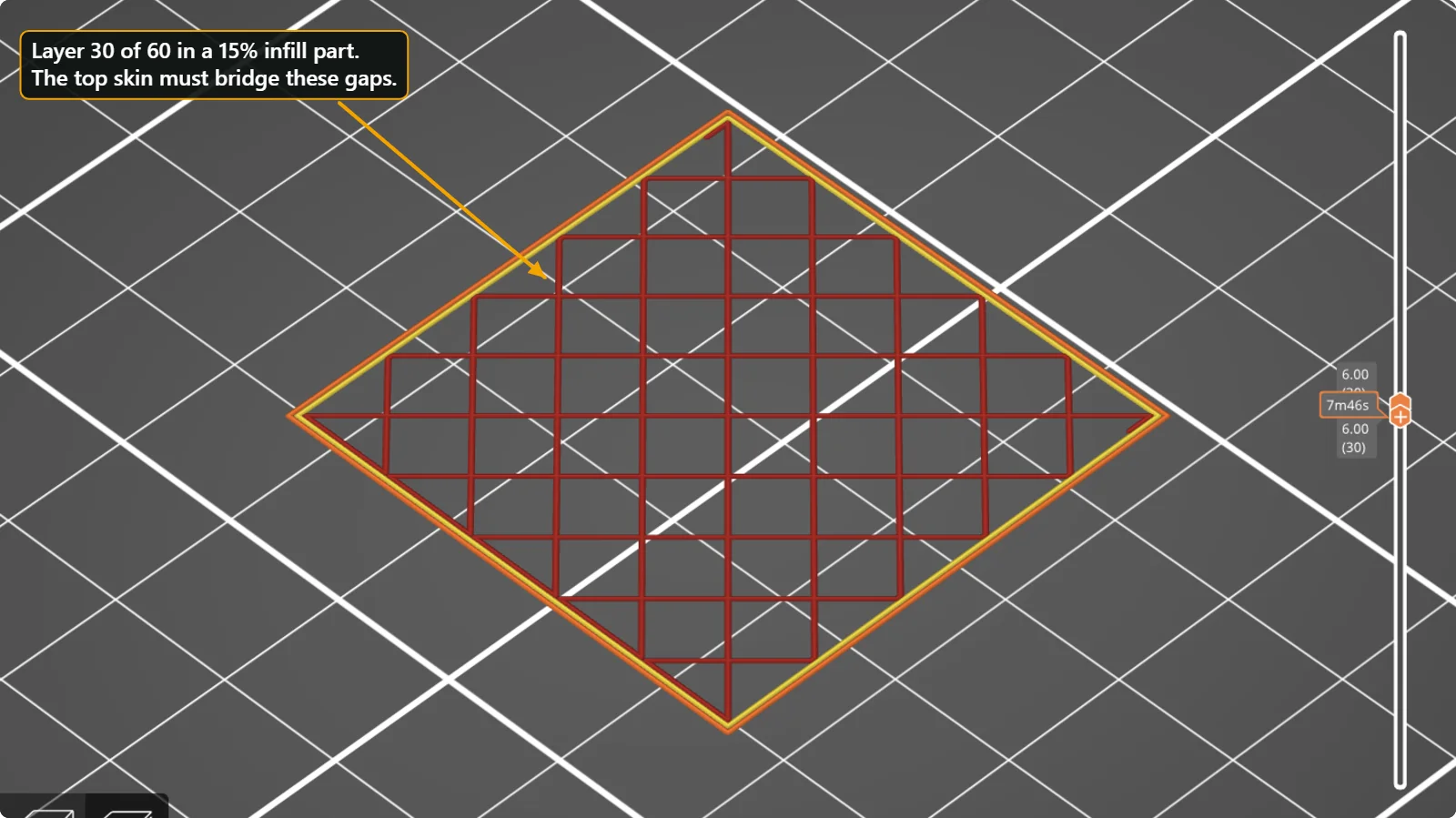 Holes and Gaps in the Top Layers of a 3D Print (Pillowing) and How to Fix ThemWhy the top surface of a print looks rough or has gaps over the infill, and which settings fix it: top solid layers, top shell thickness, infill density, cooling and flow. Real values from PrusaSlicer and Bambu Studio.
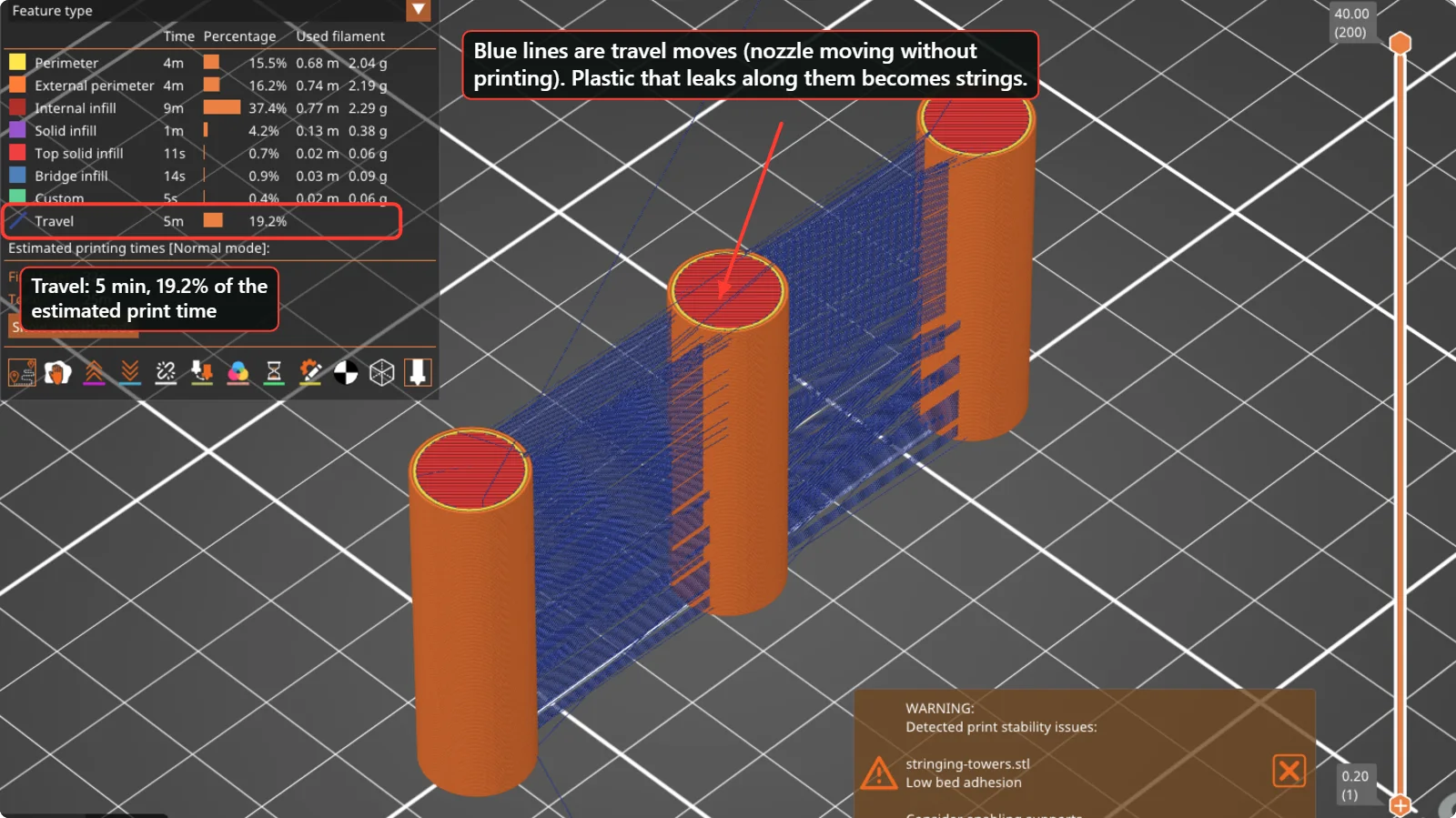 How to Fix Stringing and Oozing in 3D PrintsThin hairs between parts are caused by plastic leaking while the nozzle travels. Check wet filament, temperature, retraction and travel moves in this order, with real PrusaSlicer and Bambu Studio settings.
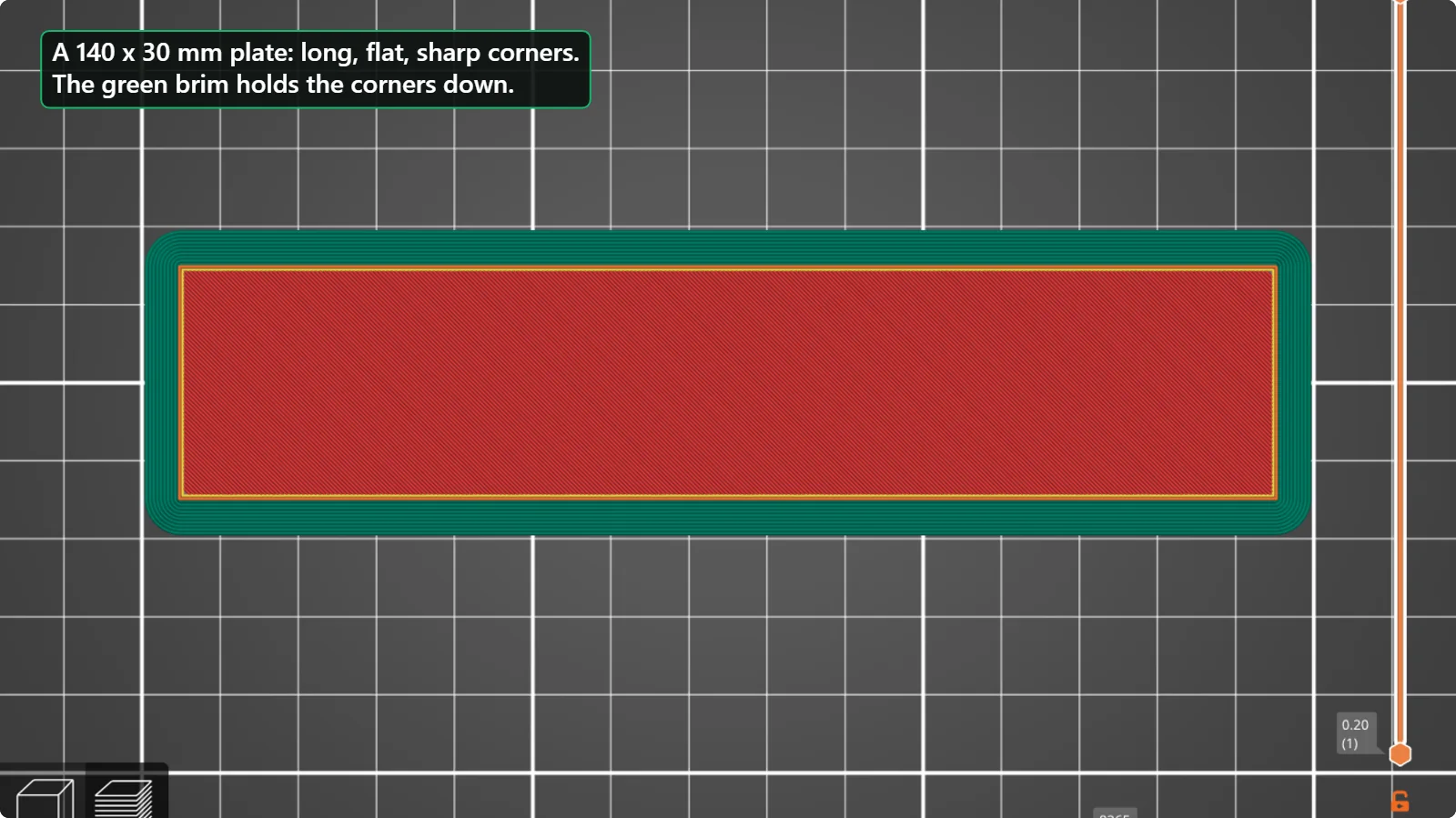 How to Stop Warping and Corner Lift in 3D PrintingWhy the corners of a flat or long print curl up from the bed, and what to change: brim, bed temperature, part-cooling fan, orientation, drafts and the shape of the model itself.
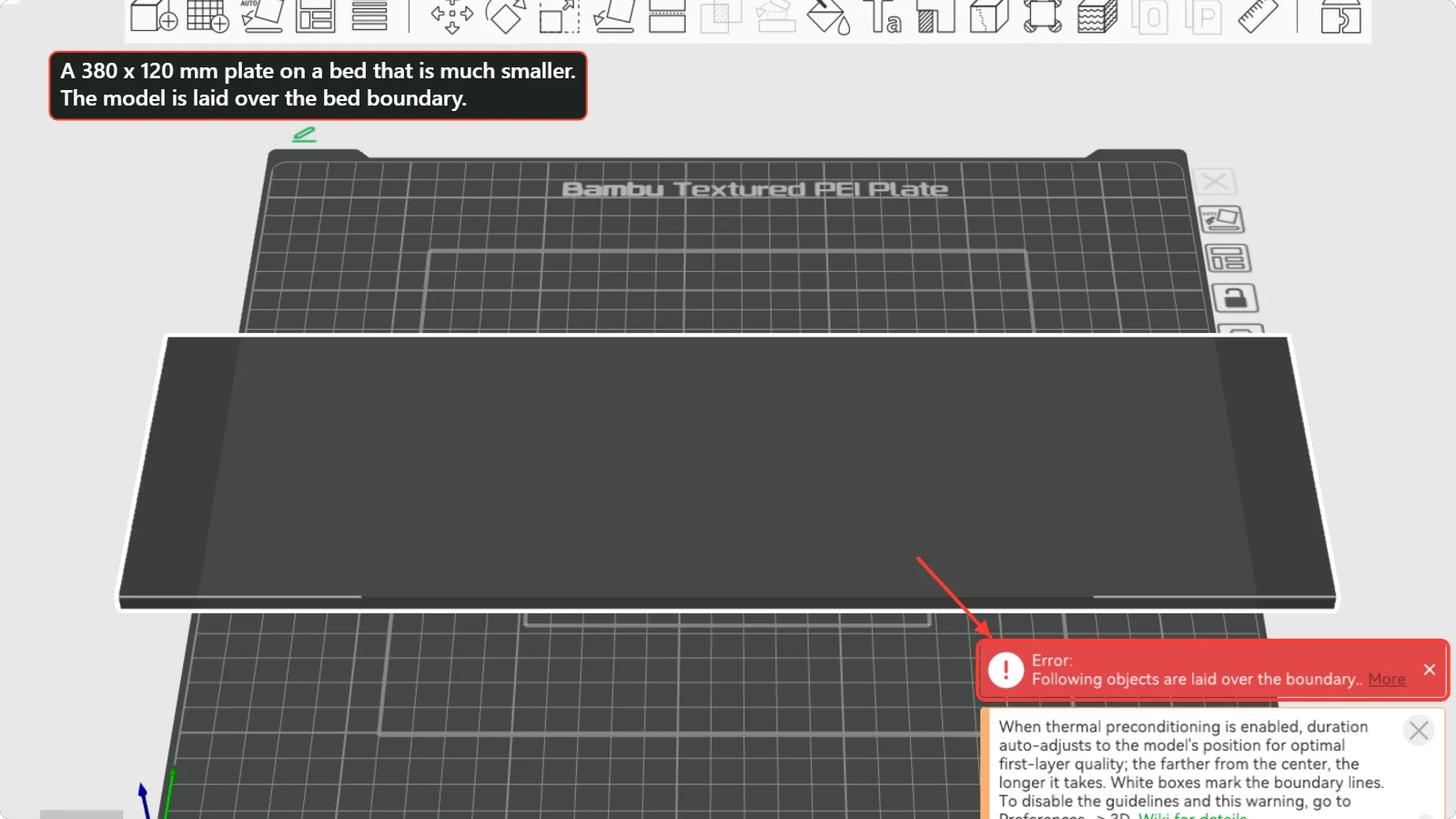 Model Too Big for Your 3D Printer Bed? Rotate, Scale or Cut ItWhat to do when the slicer says the model is laid over the bed boundary: rotate it, check the units, scale it, or cut it into pieces with the cut tool and join them again. Steps shown in Bambu Studio and PrusaSlicer.
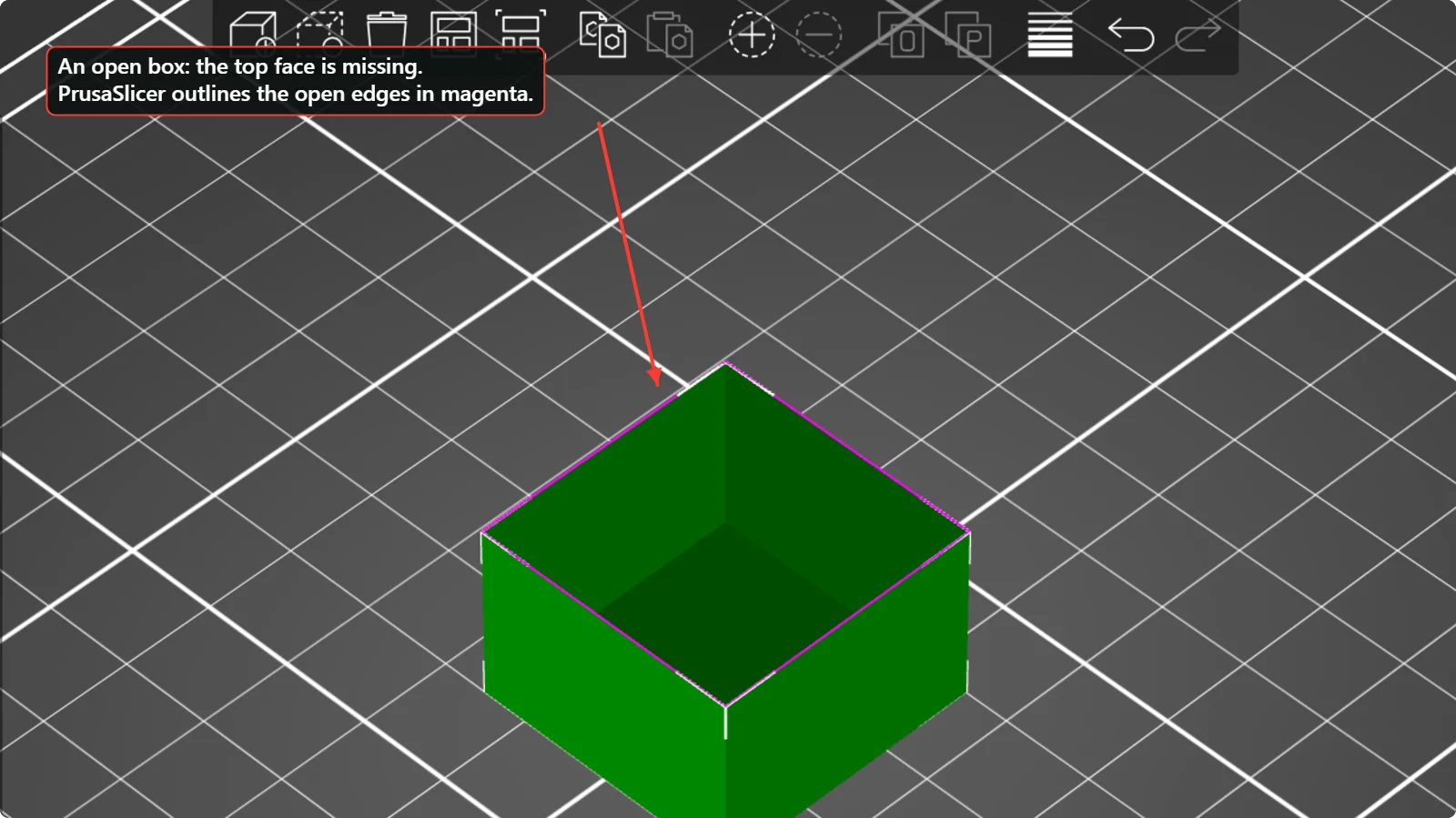 Open Edges and Broken Meshes: How to Fix 3D Model Errors Before SlicingWhat “open edges”, “non-manifold” and “errors detected” mean in a slicer, how to see them in PrusaSlicer and Bambu Studio, and how to repair a broken STL.
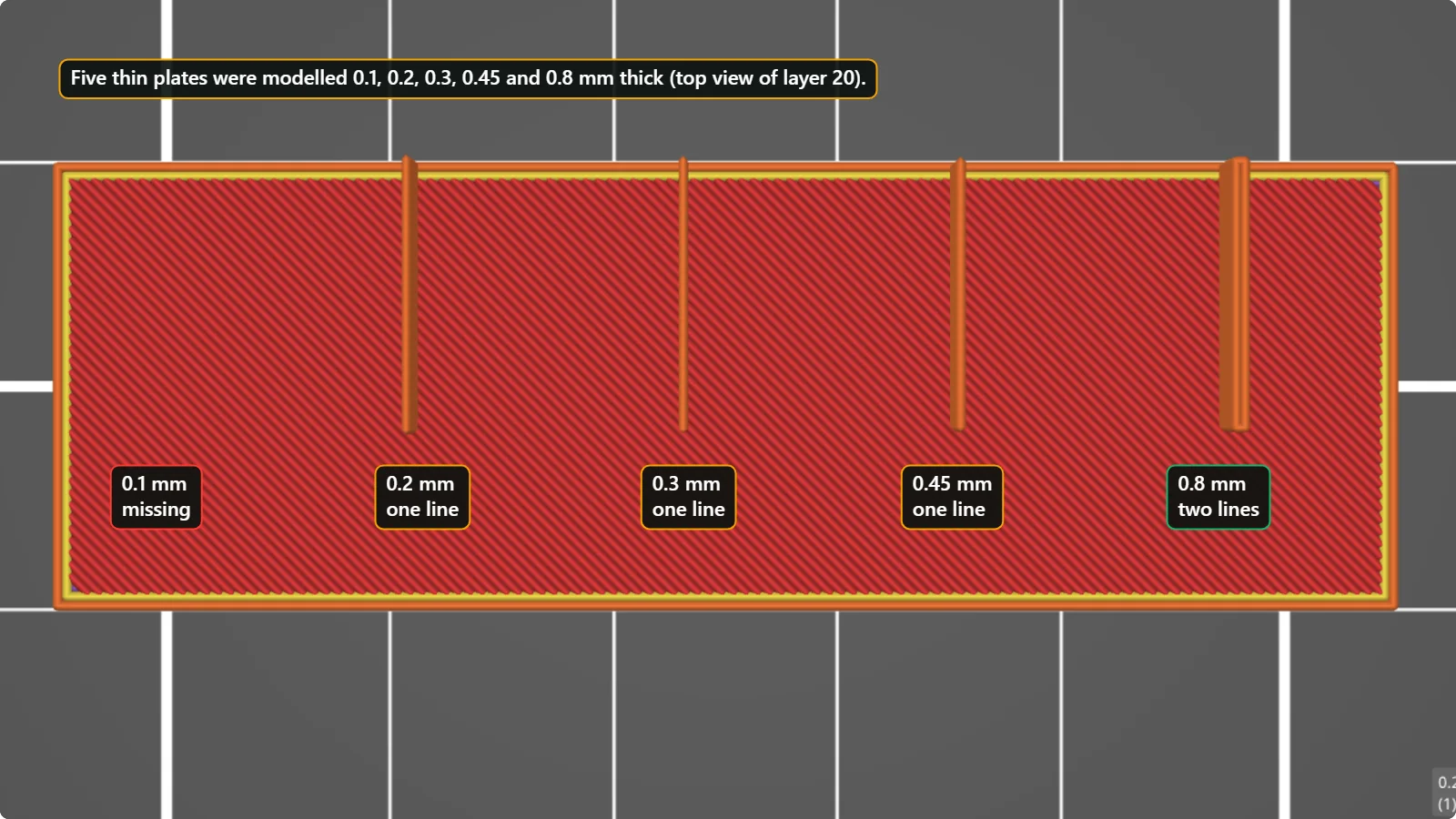 Thin Walls and Tiny Details Not Printing? Know Your Printer’s MinimumWhy a thin wall disappears or comes out thicker than you modelled, how the nozzle and line width set the minimum, and which wall thickness to design for. Shown on a test with five wall thicknesses.
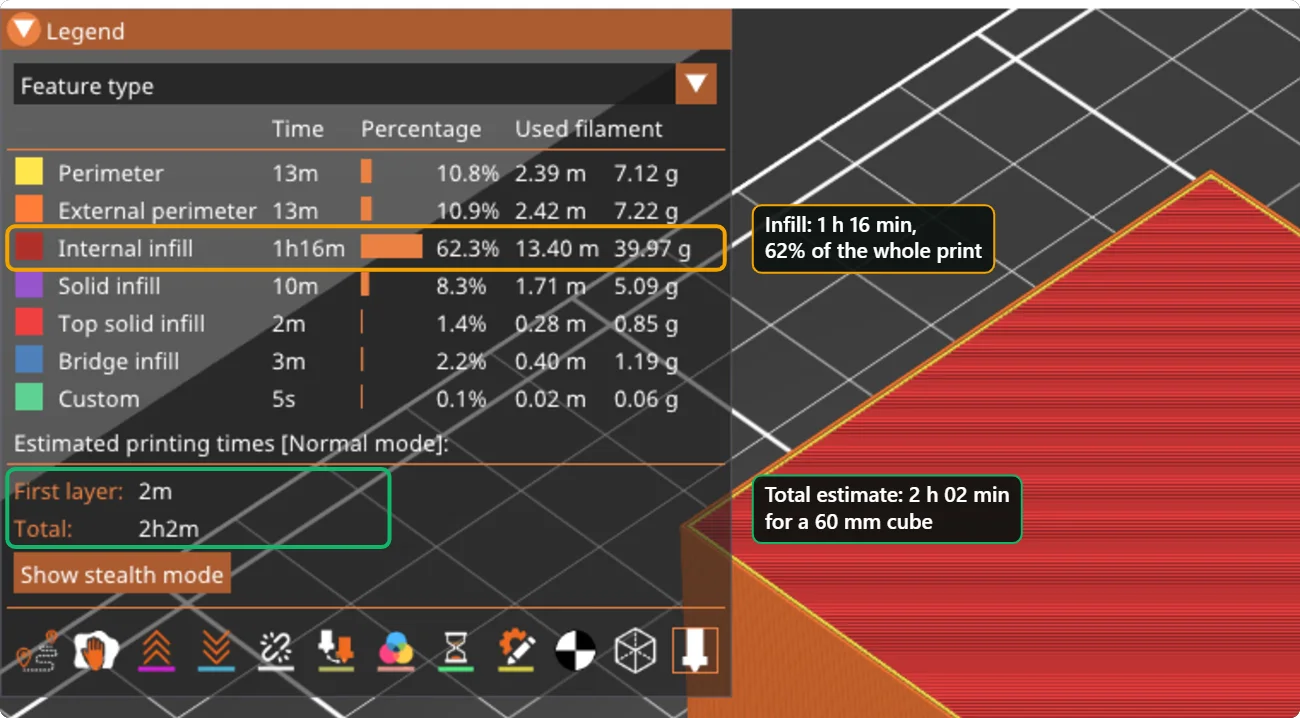 Why Is My 3D Print Taking So Long? Measured Effect of Infill, Walls and Layer HeightWe sliced the same 60 mm cube ten ways in PrusaSlicer and recorded the estimated print time and plastic use. See which settings change the time, and which ones barely matter.
Before every print: a six-point checklist
- Wash the build plate with dish soap and water, dry it, and do not touch the printing area.
- Choose the profile that matches your printer, nozzle size and filament, and the plate type you really have.
- Look at the slicer preview before you print: scrub through the layers, and read any warnings.
- Watch the first layer. It should look flat, with the lines touching and no gaps.
- Keep the first test small and fast. Print something that takes under an hour before a big project.
- Change one setting at a time, and write down what you changed and what happened.
How these guides are made
The screenshots come from slicers installed on our own computer: PrusaSlicer 2.9.6 and Bambu Studio 2.8, using the default profiles of an Original Prusa MK4S and a Bambu Lab A2L. OrcaSlicer, a close relative of Bambu Studio, uses almost the same layout. We build small test models for each problem, slice them, and read the preview and the settings. Numbers such as print times are the slicers’ own estimates, and the guides say so. Your printer, filament and slicer version can give different values, so treat the numbers as a starting point.
See a mistake, or a problem you would like us to cover? Tell us. For words you do not know, there is a 3D printing glossary.